Importing Shopify Orders Into Hantera as a Unified Commerce Backend
You know it, we know it: Shopify is not a great logistics manager. It works well as a storefront and checkout system, but once orders are placed, order management becomes complex. ERPs receive the orders through batch syncs, and because these updates are slow, teams spend a lot of time reconciling missing or outdated inventory.
As business grows, the gap widens with the use of multiple stores, various payment gateways, and international warehouses. Customer service agents end up checking several ERPs, switching across payment dashboards and spreadsheets, trying to trace which warehouse owns which order, all to answer a simple customer question: “What is the status of my order?”
Connecting a storefront like Shopify to a slow ERP and several warehouse systems will always create friction. What teams need is a system in the middle acting as a traffic controller. It listens to the storefront, receives the order the moment it is created, detects the payment state, and coordinates the work that must happen downstream. Everything moves in real time through a single operational layer. Hantera fills that role.
Before any automation happens, you need to understand how an order is represented inside Hantera. This guide walks through that foundation. We will pull an order from Shopify, clean the payload, and rebuild the order inside Hantera using its public API. By the end, you will see how delivery, order lines, inventory positions, discounts, and authorized payments fit together within the actor model.
How Shopify Orders Flow Into Hantera
The workflow of importing orders is fully automated in production. To give you a clear view of what happens behind the scenes, this guide breaks the process into manual steps so you can see each part of the system in motion.
In a real integration, Shopify creates the order, authorizes the payment, and sends the payload to your backend through a webhook. The backend receives a large JSON object that must be trimmed, cleaned, and mapped to the structure Hantera uses. We simulate that flow.
Hantera stores the final representation of the order within the Order Actor. The Order Actor holds the core information and additional commands for adding delivery, order lines, inventory positions, and discount values. The Payment Actor manages the authorized payment and can be linked to the order, so both actors stay connected and traceable. Shopify identifiers such as orderId and orderNumber can be added as dynamic fields so the order’s source remains traceable in Hantera.
Prerequisites
This walkthrough is a show-and-tell. You do not need to run any commands to follow along, but it helps if you have some experience working with:
- JSON and YAML
- basic HTTP API calls, such as sending requests and reading responses
- Shopify development store to pull a test order
Let's get started.
Step 1: Importing and Cleaning the Shopify Order Data
To work with realistic data, we create a development store in Shopify, create a test order, and mark it as paid.
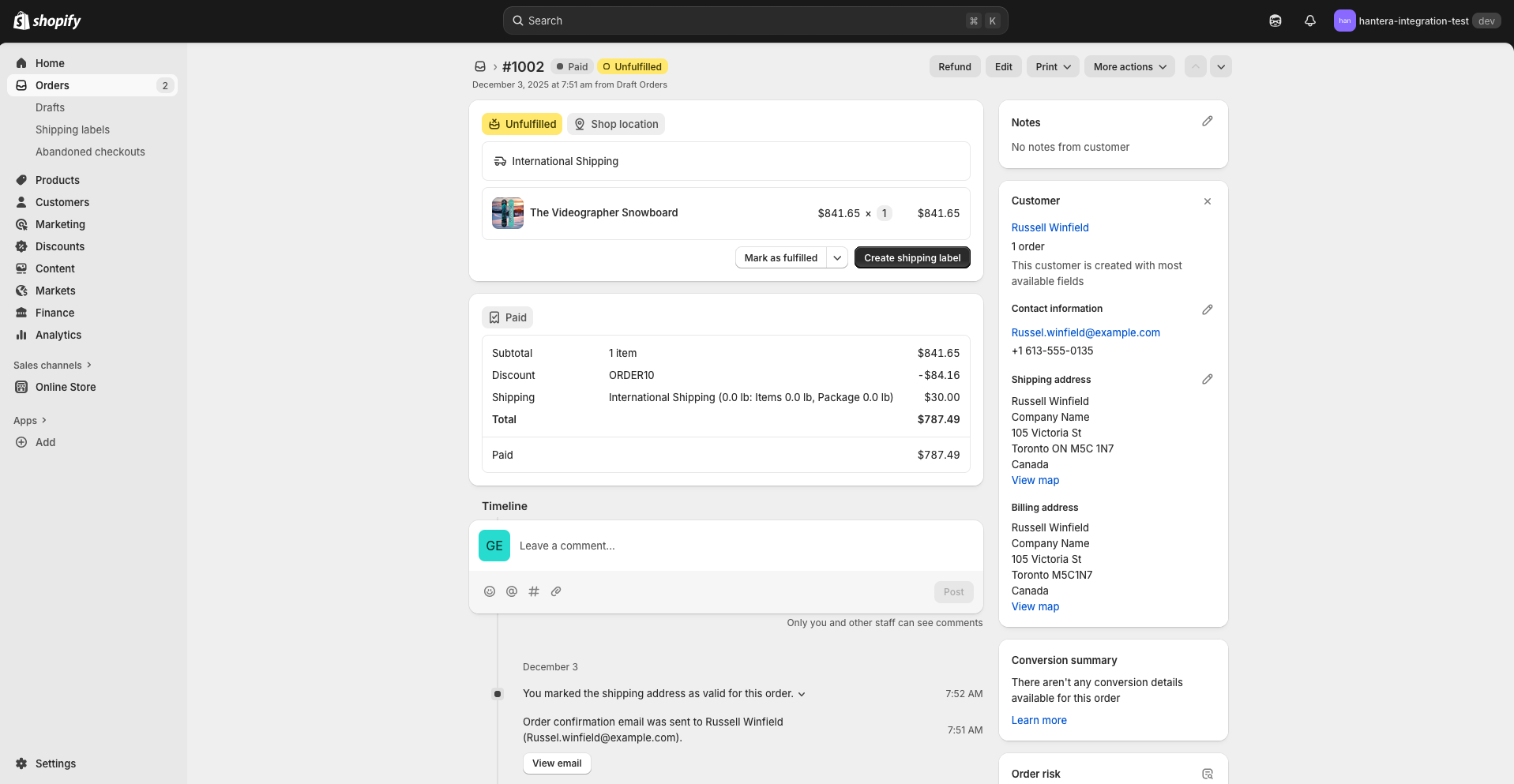
This gives us the same JSON payload that a real Shopify order would produce. The first step is to extract that payload and trim it into a smaller structure that is easier to map into Hantera.
a. Extract the Shopify raw order
curl -X GET \
  "https://hantera-integration-test.myshopify.com/admin/api/2025-01/orders/`<order-id>`.json" \
  -H "X-Shopify-Access-Token: shpat_`<access-token>`" \
  -H "Content-Type: application/json" \
  -o raw-order.json
This command writes the full Shopify payload into a raw-order.json file.
The file is large and not very friendly to work with directly. A shortened version looks like this:
{"order":{"id":6337965293665,"admin_graphql_api_id":"gid:\/\/shopify\/Order\/6337965293665","app_id":1354745,"browser_ip":"181.109.120.35","buyer_accepts_marketing":false,"cancel_reason":null,"cancelled_at":null,"..."}}b. Clean the Shopify raw order
Next, we create a small Node script that reads raw-order.json, picks out the fields we need, and writes a trimmed structure to cleaned-order.json.
const fs = require("fs");
// 1. Read raw Shopify JSON
const raw = fs.readFileSync("./raw-order.json", "utf8");
const data = JSON.parse(raw);
const order = data.order;
// 2. Mapping function
function mapShopifyOrder(order) {
  return {
    // Order-level
    orderId: order.id,
    orderNumber: order.order_number,
    currency: order.currency,
    createdAt: order.created_at,
    customerLocale: order.customer_locale,
    customer: {
      id: order.customer?.id,
      defaultAddress: order.customer?.default_address,
      billingAddress: order.billing_address,
      shippingAddress: order.shipping_address,
    },
    lineItems: order.line_items.map(item => ({
      sku: item.sku || String(item.variant_id),
      title: item.title,
      quantity: item.quantity,
      unitPrice: Number(item.price),
      taxable: item.taxable,
      discountAllocations: (item.discount_allocations || []).map(a => ({
        amount: Number(a.amount),
        currency: a.amount_set?.shop_money?.currency_code,
      })),
    })),
    discounts: {
      codes: order.discount_codes || [],
      applications: order.discount_applications || [],
    },
    shipping: order.shipping_lines[0]
      ? {
          title: order.shipping_lines[0].title,
          price: Number(order.shipping_lines[0].price),
          code: order.shipping_lines[0].code,
        }
      : null,
    payment: {
      amount: Number(order.total_price),
      currency: order.currency,
      financialStatus: order.financial_status,
      gateway: order.payment_gateway_names?.[0],
      transactionId: order.confirmation_number, // temp auth ID
    },
    meta: {
      note: order.note,
      tags: order.tags,
      fulfillmentStatus: order.fulfillment_status,
      subtotal: Number(order.subtotal_price),
      totalDiscounts: Number(order.total_discounts),
      totalLineItemsPrice: Number(order.total_line_items_price),
    },
  };
}
// 3. Run mapping
const cleaned = mapShopifyOrder(order);
// 4. Write cleaned JSON
fs.writeFileSync(
  "./cleaned-order.json",
  JSON.stringify(cleaned, null, 2),
  "utf8"
);
console.log("Wrote cleaned-order.json");
Running:
node map.jsProduces the cleaned structure:
{
  "orderId": 6337965293665,
  "orderNumber": 1002,
  "currency": "USD",
  "createdAt": "2025-12-03T07:51:44-05:00",
  "customerLocale": "en-ca",
  "customer": {
    "id": 7847164346465,
    "defaultAddress": {
      "id": 9056603373665,
      "customer_id": 7847164346465,
      "company": "Company Name",
      "province": "Ontario",
      "country": "Canada",
      "province_code": "ON",
      "country_code": "CA",
      "country_name": "Canada",
      "default": true
    },
    "billingAddress": {
      "province": null,
      "country": "Canada",
      "country_code": "CA",
      "province_code": null
    },
    "shippingAddress": {
      "province": "Ontario",
      "country": "Canada",
      "country_code": "CA",
      "province_code": "ON"
    }
  },
  "lineItems": [
    {
      "sku": "42657653129313",
      "title": "The Videographer Snowboard",
      "quantity": 1,
      "unitPrice": 841.65,
      "taxable": true,
      "discountAllocations": [
        {
          "amount": 84.16,
          "currency": "USD"
        }
      ]
    }
  ],
  "discounts": {
    "codes": [
      {
        "code": "ORDER10",
        "amount": "84.16",
        "type": "percentage"
      }
    ],
    "applications": [
      {
        "target_type": "line_item",
        "type": "discount_code",
        "value": "10.0",
        "value_type": "percentage",
        "allocation_method": "across",
        "target_selection": "all",
        "code": "ORDER10"
      }
    ]
  },
  "shipping": {
    "title": "International Shipping",
    "price": 30,
    "code": "International Shipping"
  },
  "payment": {
    "amount": 787.49,
    "currency": "USD",
    "financialStatus": "paid",
    "gateway": "manual",
    "transactionId": "N8A4RXG8H"
  },
  "meta": {
    "note": null,
    "tags": "",
    "fulfillmentStatus": null,
    "subtotal": 757.49,
    "totalDiscounts": 84.16,
    "totalLineItemsPrice": 841.65
  }
}
This cleaned object is what a real backend would pass on to Hantera. It pulls out the important fields and leaves the rest behind.
In the next step, we start mapping these fields into Hantera’s order and payment actors. For example:
Mapping summary
| Shopify field | Hantera target |
|---|---|
| order.id | order.dynamic.shopifyOrderId |
| order.order_number | order.dynamic.shopifyOrderNumber |
| order.currency | order.currencyCode / payment.currencyCode |
| total_price | payment.amount |
| line_items[n].price | orderLine.unitPrice |
| line_items[n].quantity | orderLine.quantity |
| variant_id / sku | orderLine.productNumber |
| payment_gateway_names[0] | payment.providerKey or payment dynamic fields |
| confirmation_number | payment.authorizationNumber |
| shipping_lines[0].price | delivery.shippingPrice |
Step 2: Creating the Order Actor in Hantera
After cleaning the Shopify order, we create a new Order Actor in Hantera to hold the mapped data from Shopify.
To do this, we send a request to create the order with its currency and tax settings, and add the Shopify identifiers as dynamic fields:
POST https://{tenant-id}.core.ams.hantera.cloud/resources/actors/order/new
Authorization: Bearer `<token>`
Content-Type: application/json

[
  {
    "type": "create",
    "body": {
      "currencyCode": "USD",
      "taxIncluded": false,
      "commands": [
        {
          "type": "setOrderDynamicFields",
          "fields": {
            "shopifyOrderId": 6337965293665,
            "shopifyOrderNumber": 1002
          }
        }
      ]
    }
  }
]
A successful response looks like this:
{
  "paths": [
    "resources/actors/order/019b03be-e202-76ab-8810-3313cfb237eb",
    "resources/actors/order/O100127"
  ],
  "data": {
    "create": "OK"
  }
}
Hantera returns two identifiers for the same order:
- a UUID (
019ae966-57f1-7c93-86b6-7e3f90cd9273), used internally by the API - a short order handle (
O100127), which appears on Hantera’s dashboard and is easier to reference during testing.
If you look at the commands section in the request, you can see where the Shopify identifiers are stored:
{
  "type": "setOrderDynamicFields",
  "fields": {
    "shopifyOrderId": 6337965293665,
    "shopifyOrderNumber": 1002
  }
}
These dynamic fields give Hantera a place to hold Shopify-specific values that do not exist as built-in fields. To surface them in the UI, we add graph mappings in Hantera’s registry:
#h_manifest.yml
---
uri: /registry/graph/order/fields/shopifyOrderId
spec:
  value:
    type: 'text'
    source: "dynamic->'shopifyOrderId'"
---
uri: /registry/graph/order/fields/shopifyOrderNumber
spec:
  value:
    type: 'text'
    source: "dynamic->'shopifyOrderNumber'"
Apply the manifest:
h_ manage apply h_manifest.ymlAfter this, the Shopify order id and order number appear as columns on the Hantera order view, which makes it easy to trace O100127 back to the original Shopify order.

Step 3: Adding Delivery, Order Lines, Inventory, and Discounts
To prepare this step, we take the cleaned Shopify order and break it into the parts Hantera expects. These parts include a delivery, one or more order lines, the conventional inventory fields for that delivery, and any discounts applied to the order.
These components mirror how Shopify represents an order, but now we express them through Hantera’s order actor.
We add these structures by sending an applyCommands request to the order actor. These commands can also be included in the initial create message, but separating them here makes the flow easier to understand.
POST https://demo-tech1.core.ams.hantera.cloud/resources/actors/order/`<order-id>`
Authorization: Bearer `<token>`
Content-Type: application/json
[
  {
    "type": "applyCommands",
    "body": {
      "commands": [
        {
          "type": "createDelivery",
          "deliveryId": "00000000-0000-0000-0000-000000000001",
          "shippingPrice": 30,
          "shippingProductNumber": "SHIP_INTL",
          "shippingDescription": "International Shipping"
        },
        {
          "type": "setDeliveryDynamicFields",
          "deliveryId": "00000000-0000-0000-0000-000000000001",
          "fields": {
            "inventoryKey": "INV_CA",
            "inventoryDate": "2025-12-03"
          }
        },
        {
          "type": "createOrderLine",
          "deliveryId": "00000000-0000-0000-0000-000000000001",
          "orderLineId": "11111111-1111-1111-1111-000000000001",
          "orderLineNumber": "2",
          "productNumber": "42657653129313",
          "description": "The Videographer Snowboard",
          "quantity": 1,
          "unitPrice": 841.65,
        },
        {
          "type": "createComputedOrderDiscountBySource",
          "discountId": "22222222-2222-2222-2222-000000000001",
          "source": "from percentage(target(e => e is OrderLine), 10%)",
          "description": "ORDER10 - 10% off",
          "dynamic": {
            "shopifyDiscountCode": "ORDER10"
          }
        }
      ]
    }
  }
]
Notice how the UUIDs follow predictable patterns for readability during testing.
- all deliveries use the prefix
00000000-0000-0000-0000-… - all order lines use
11111111-1111-1111-1111-…
A production workflow would generate fully random UUIDs, but this pattern helps show the relationship between a single delivery and its order components:
- Delivery 1 →
000…001 - OrderLine 1 →
111…001
This mirrors Shopify’s structure: one order may have multiple deliveries, and each delivery may contain multiple order lines. A second delivery would use 000…002, while a second order line would use 111…002.
To make the flow clearer, here is what each command contributes to the order.
createDelivery
    {
      "type": "createDelivery",
      "deliveryId": "00000000-0000-0000-0000-000000000001",
      "shippingPrice": 30,
      "shippingProductNumber": "SHIP_INTL",
      "shippingDescription": "International Shipping"
    }
This command creates the delivery container in Hantera. It carries the shipping cost, the shipping method, and the product code taken from Shopify’s shipping_lines.
setDeliveryDynamicFields
    {
      "type": "setDeliveryDynamicFields",
      "deliveryId": "00000000-0000-0000-0000-000000000001",
      "fields": {
        "inventoryKey": "INV_CA",
        "inventoryDate": "2025-12-03"
      }
    }
This stamps the delivery with the warehouse it ships from and the date stock availability was evaluated. Deliveries carry inventory data as conventional dynamic fields rather than built-in system fields — apps such as inventory-routing act on these conventions (for example, resolving inventoryKey: "auto_assign" into a real warehouse).
createOrderLine
    {
      "type": "createOrderLine",
      "deliveryId": "00000000-0000-0000-0000-000000000001",
      "orderLineId": "11111111-1111-1111-1111-000000000001",
      "orderLineNumber": "1",
      "productNumber": "42657653129313",
      "description": "The Videographer Snowboard",
      "quantity": 1,
      "unitPrice": 841.65
    }
This creates the item itself and ties it to the delivery. If a Shopify order contained multiple items or partial shipments, additional deliveries and order lines would be created the same way.
createComputedOrderDiscountBySource
    {
      "type": "createComputedOrderDiscountBySource",
      "discountId": "22222222-2222-2222-2222-000000000001",
      "source": "from percentage(target(e => e is OrderLine), 10%)",
      "description": "ORDER10 - 10% off",
      "dynamic": {
         "shopifyDiscountCode": "ORDER10"
        }
    }
This creates a computed discount that applies ten percent across all order lines. The Filtrera expression in the source field defines the logic, and the dynamic field keeps the original Shopify discount code for later reference. Using a computed discount keeps Hantera’s pricing aligned with Shopify without requiring a separate discount component.
After these commands are applied, Hantera displays the delivery, order line, and discount exactly as Shopify structures them, but in Hantera’s operational model.
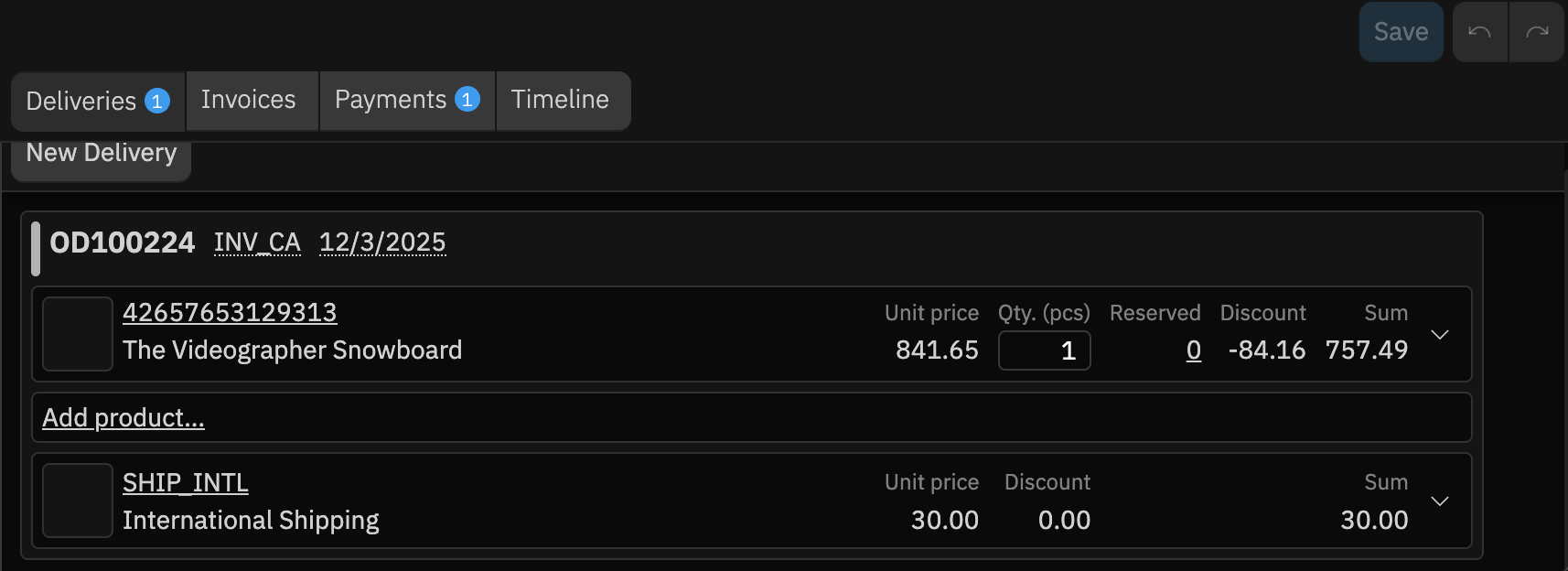
Step 4: Creating a Payment Actor That Mirrors Shopify’s Authorization
Since Shopify already authorizes the payment, we create a payment actor in Hantera that mirrors that state instead of charging the customer again.
We send the following request to create the Payment Actor:
    POST https://{tenant-id}.core.ams.hantera.cloud/resources/actors/payment/new
    Authorization: Bearer `<token>`
    Content-Type: application/json
    [
      {
        "type": "create",
        "body": {
          "providerKey": "shopify-manual",
          "currencyCode": "USD",
          "amount": 787.49,
          "commands": [
            {
              "type": "createAuthorization",
              "authorizationNumber": "N8A4RXG8H",
              "amount": 787.49,
              "authorizationState": "successful"
            }
          ]
        }
      }
    ]
The providerKey, currencyCode, and amount come directly from the Shopify order (payment_gateway_names, currency, and total_price). The createAuthorization command records Shopify’s authorization number and marks it as successful.
Step 5: Linking the Payment to the Order and Updating Order Status
With the payment authorized inside Hantera, we link the payment actor to the order actor and update the order status to confirmed.
The linking command looks like this:
    POST https://{tenant-id}.core.ams.hantera.cloud/resources/actors/order/O100126
    Authorization: Bearer `<Token>`
    Content-Type: application/json

    [
      {
        "type": "applyCommands",
        "body": {
          "commands": [
            {
              "type": "linkPayment",
              "paymentId": "019afe87-d0ff-74fe-86c6-53db790995d0"
            }
          ]
        }
      }
    ]
This associates the payment actor with the order actor, so the authorization and balance show up directly on the order view in Hantera.
Next, we set the order state to confirmed:
    POST https://{tenant-id}.core.ams.hantera.cloud/resources/actors/order/O100126
    Authorization: Bearer `<Token>`
    Content-Type: application/json
    [
      {
        "type": "applyCommands",
        "body": {
          "commands": [
            {
              "type": "setOrderState",
              "orderState": "confirmed"
            }
          ]
        }
      }
    ]
After these commands, the order screen in Hantera shows the products, shipping, total, and authorized amount in a single frame. The payment appears as linked, and the order is marked as confirmed, just like the paid order in Shopify.
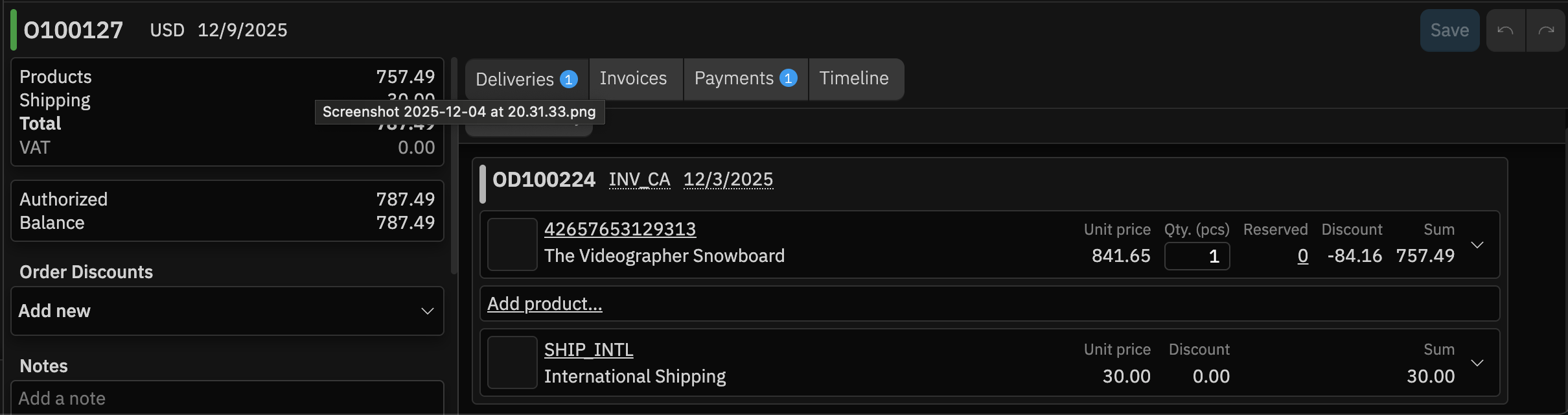
These steps give a high-level picture of how a backend can use Hantera’s actors and commands to mirror Shopify orders, payments, and status.
From High-Level Walkthrough to Full Automation
We took a step-by-step approach to cleaning a Shopify order and rebuilding its structure in Hantera. The goal was to show how Hantera adapts to data from different systems and how each part of the order maps into the order actor model. Once you see this flow clearly, the next idea that comes to mind is automation. In a real setup, the entire process runs without manual calls. Hantera exposes a harmonized API and an ingress layer that allows Shopify’s webhooks to send order events into Hantera directly.